Git Commands
Introduction
This post will list some frequently used commands. My operating system is Ubuntu 24.04.02.🧐
Repository
Repository includes all the projects, you need to create a folder to create a repository.
I will create a folder called “git_test”
1 | mkdir git_test |
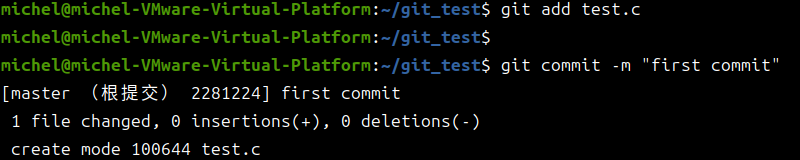
I have a file named “test.c” in this folder, enter git add test.c to place the file into Git’s staging area.
If you have other files, and you want to put all these files into the Git staging area at once, enter git add .
If you have finished modifying all the files and have put them into Git’s staging area, enter git commit -m "...Your commit message..."
You can view previous commit records by typing git log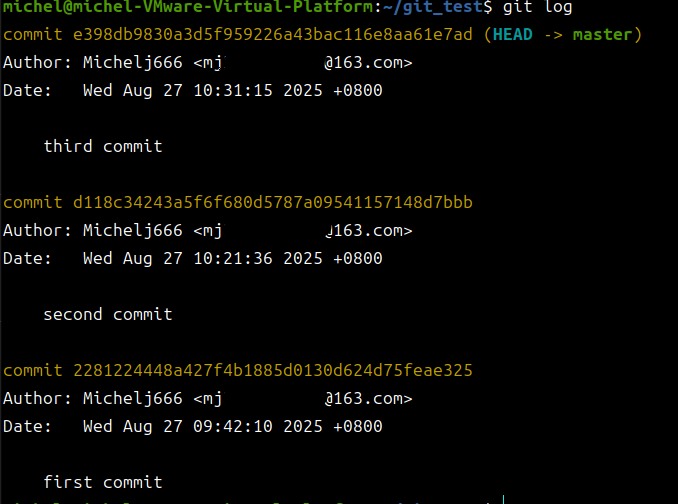
If you want to revert to a previous version, enter git reset --hard <Version><Version> can be a commit hash (e.g., d118c) or a relative reference (e.g., HEAD^).
There are two ways to specify the version in <Version>
Relative addressing
The current version is represented byHEAD. If you want to go to the previous version, enterHEAD^.The version before last isHEAD^^. The 10th previous version isHEAD~10.ID addressing
If you want to go to the “second version” in the image, enter
d118ord118c, at least four characters and ensure there is no ambiguity.
git reset --hard d118 or git reset --hard HEAD^
Now we are at “second commit”, type git log.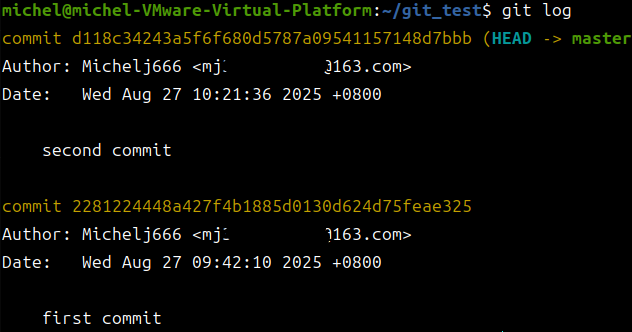
At this point, we find that we cannot view the ID of “third commit”. If you want go to “third commit” but don’t know its ID, type git reflog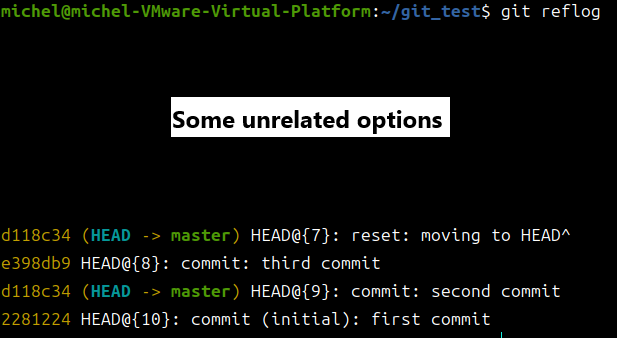
Enter git reset --hard e398
Now you have entered “third commit”.
Branch
Use git branch to view all branches.
Use git checkout master to switch to the “master” branch.
Use git branch name to create a new branch called “name”, but the HEAD pointer will not move to name.
Use git checkout -b name2 to create a new branch and point HEAD to name2.
Merge the name2 branch into the master branch and delete name2 :
1 | git checkout master |
Remote Git repository
I will take GitHub as an example. And I will name this remote repository “git_test”.1
2git remote add git_test git@github.com:username/your_repo.git
git push git_test master
If you haven’t configured the SSH key for the current machine on GitHub before, follow these steps:
1 | ssh-keygen -t ed25519 -C "your_github_email@email.com" |
Copy the displayed key. Open Github, go to settings —>SSH and GPG keys —>New SSH key.
Give it a name and paste the key.
1 | ssh -T git@github.com |
If a Hi <username>! You've successfully authenticated, but GitHub does not provide shell access. prompt appears, it means you have successfully configured it.🤓
If ssh: connect to host github.com port 22: Connection refused appears, it means that port 22 cannot connect normally😭. Don’t worry, we can use GitHub’s alternative SSH port 443.🧐
1 | nano ~/.ssh/config |
Copy the following content:
1 | Host github.com |
- Press
Ctrl+Shift+Vto paste. - Press
Ctrl+Oto save, thenEnterto confirm. - Press
Ctrl+Xto exit.
1 | ssh -T git@github.com |
Then Hi <username>! You've successfully authenticated, but GitHub does not provide shell access. will appear.😊
Try git push git_test master again.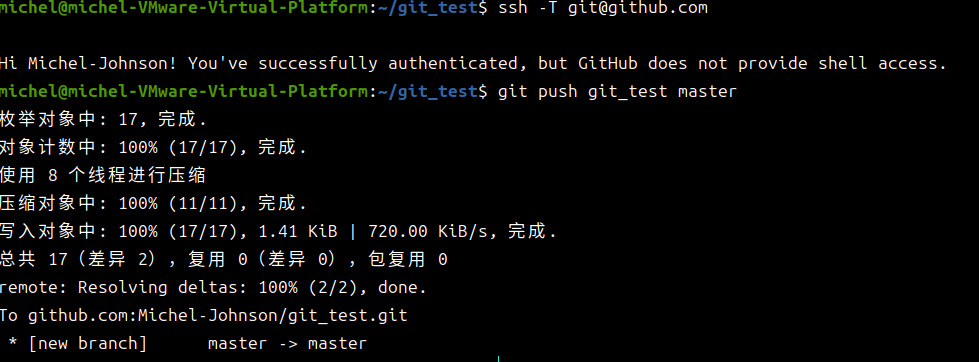
Congratulations!✌️